> ## Documentation Index
> Fetch the complete documentation index at: https://lemonslice.com/docs/llms.txt
> Use this file to discover all available pages before exploring further.
# Green Screen (Chroma Key)
> Place a LemonSlice avatar into any background with client-side green screen compositing
## Overview
[Green screen compositing](https://en.wikipedia.org/wiki/Chroma_key) gives you full control over how and where a LemonSlice avatar appears in your application. Rather than a fixed rectangular video frame, the character can be placed over a dynamic landscape, layered into a product UI, floated transparently over slides or web content, or composited against a generative background that reacts to the conversation. LemonSlice generates the avatar against a solid lime-green background, and your browser removes the green in real time using a chroma key shader.
WebGL makes it straightforward to replace the green background in real time, right in the browser — a fragment shader runs the per-pixel keying math on the GPU, fast enough to keep up with the incoming video frame rate. Running the keying step client-side gives you full control over the scene — backgrounds can be swapped or animated at any point, independent of the avatar session.
## Why chroma key?
| Use case | What you get |
| ------------------------ | ------------------------------------------------------------------------------------------ |
| **Landscape layouts** | Drop a vertical LemonSlice stream into a 16:9 or other horizontal container |
| **Floating avatar** | Key to transparency and overlay the character directly on your site, product UI, or slides |
| **Engaging backgrounds** | Add background animations with a looping MP4, CSS animation, canvas, or WebGL |
| **Live scene changes** | Swap or animate the background mid-call without recreating the session |
## How it works
Start by giving LemonSlice a reference image with a solid lime-green background. LemonSlice animates the avatar against that green and streams the result as a standard WebRTC video track. On the frontend, you draw each incoming frame through a chroma-key pass. Any pixel close to the key color is made transparent. You can then layer that canvas over whatever background you want.
The key color you configure in your frontend shader must match the actual background color in your reference image. Sample the exact hex value from the image rather than assuming a standard green — the specific shade matters for clean edges.
A WebGL fragment shader is the right tool for the keying step. Running per-pixel math on the GPU keeps the loop fast enough to match the incoming video frame rate without blocking the main thread.
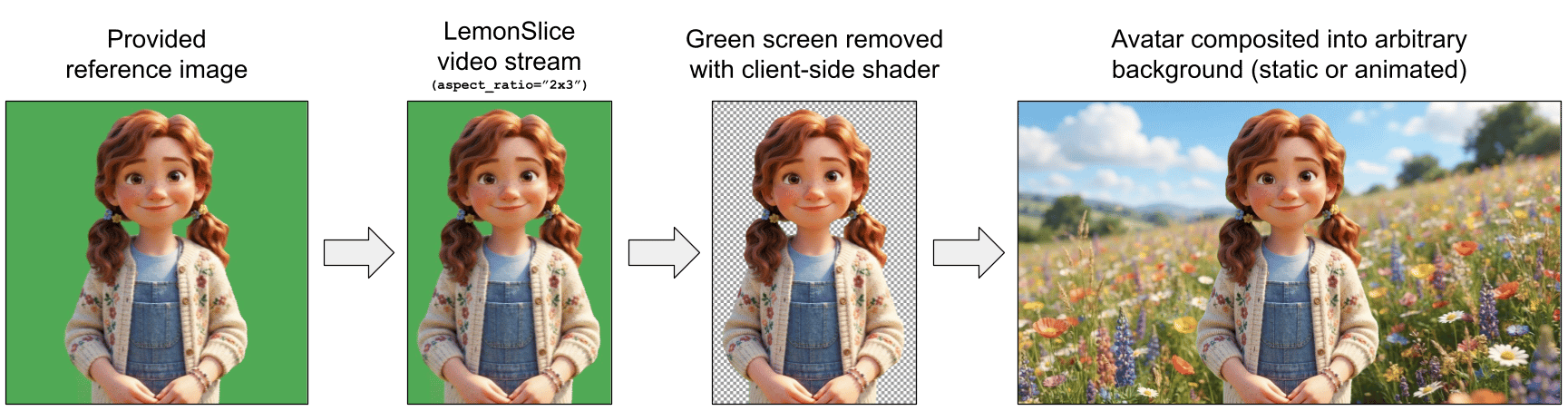
Overview of the green screen compositing process.
## End-to-end example: landscape video streams
Vertical aspect ratios generally produce the best results for humanoid avatars — they keep the frame tight on the character and avoid wasting pixels on dead space. But many UIs need to be landscape. Using a green screen allows you to get the best of both: stream a high-quality vertical avatar, then composite it into a 16:9 (or wider) container on the frontend.
Our [Green Screen + Landscape example repo](https://github.com/lemonsliceai/lemonslice-examples/tree/main/08-green-screen-landscape-demo) is a complete Next.js + LiveKit example of this pattern. It includes:
* A Python LiveKit Agents worker that requests a `2x3` green-screen avatar stream
* A WebGL chroma-key renderer with tunable similarity, smoothness, spill-removal, and edge feathering parameters
* A looping landscape background MP4 behind the keyed avatar
When adapting to your own application, you should configure the keyer to match your reference image:
```ts theme={null}
export const CHROMA_KEY_HEX = "#50A954"; // sample this from your reference image
export const CHROMA_KEY_OPTIONS = {
keyColor: hexToKeyColor(CHROMA_KEY_HEX),
similarity: 0.22, // how close a pixel must be to the key color to be removed
smoothness: 0.06, // width of the transition between opaque and transparent
spillMin: 0.025, // green-excess (g - max(r,b)) at which spill removal starts
spillMax: 0.085, // green-excess at which the pixel is fully keyed out
edgeFeatherPx: 1, // post-key alpha blur at the silhouette edge (0 = off)
};
```
`similarity` and the `spill` values are the parameters most likely to need tuning — greens vary enough across reference images that defaults rarely transfer perfectly. See [`createChromaKeyRenderer.ts`](https://github.com/lemonsliceai/lemonslice-examples/blob/main/08-green-screen-landscape-demo/src/lib/chroma-key/createChromaKeyRenderer.ts) for the full WebGL shader and renderer implementation.