
Documentation Index
Fetch the complete documentation index at: https://lemonslice.com/docs/llms.txt
Use this file to discover all available pages before exploring further.
This is an enterprise-only feature. Contact support@lemonslice.com to get access.
Overview
We recommend using LemonSlice avatars at their default, vertical aspect ratio for best quality. However, for certain applications (e.g. desktop interfaces), developers may prefer a horizontal aspect ratio. In these scenarios, we recommend using the green screen pipeline described in this guide. Using a green screen lets us focus compute on the avatar itself rather than the background, and deliver a higher quality avatar. We have optimized the green screen pipeline to work best for applications where the final video display will be landscape / horizontal. When you use this feature, the final video returned by LemonSlice will be 720px wide by 400px tall. To achieve a different aspect ratio (e.g. 16:9), you can crop the returned video in your front-end application.Choose your images
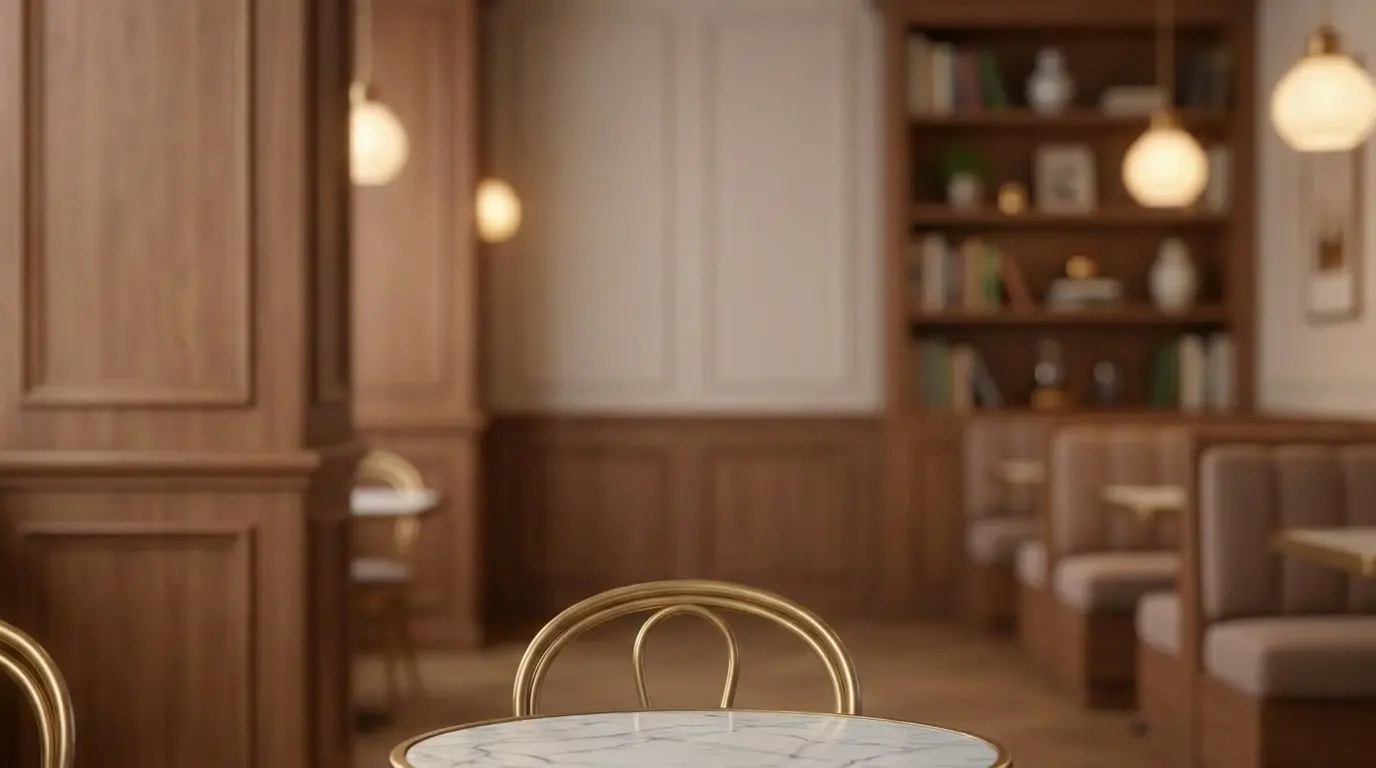
In order to use the green screen feature, you need to provide us with two images: an avatar and a background. Avatar: Your avatar should be rendered on a lime green background for best keying results. We recommend using Nano Banana 2 to add the background. Make sure the green background is visible on the left, right, and top of the avatar. Any portion of the avatar that touches the edge of the frame will have a hard cut in the final rendering. For photorealistic avatars, we recommend cropping your character to show the chest and above.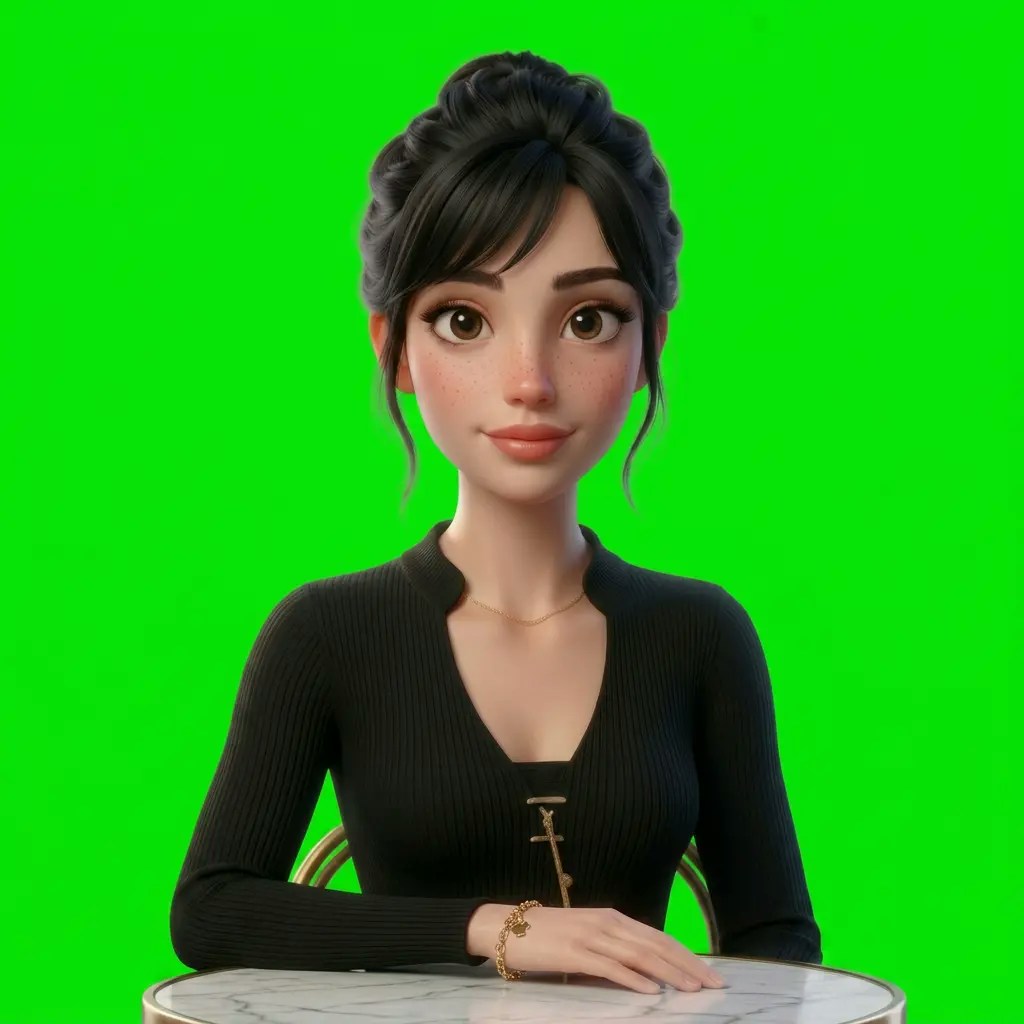
The image you provide will be center-cropped to fit the 9:5 aspect ratio of the final video.

Choose an aspect ratio
When using a green screen, you may wish to experiment with different aspect ratios. Supported values are2x3 (default), 9x16, and 1x1.
This controls how your avatar image will be cropped (i.e. what part of your reference image will be animated).
Vertical aspect ratios generally produce the best results.
However, using an aspect ratio that is too extreme (e.g. 9x16) may result in cropping your avatar’s extremities.
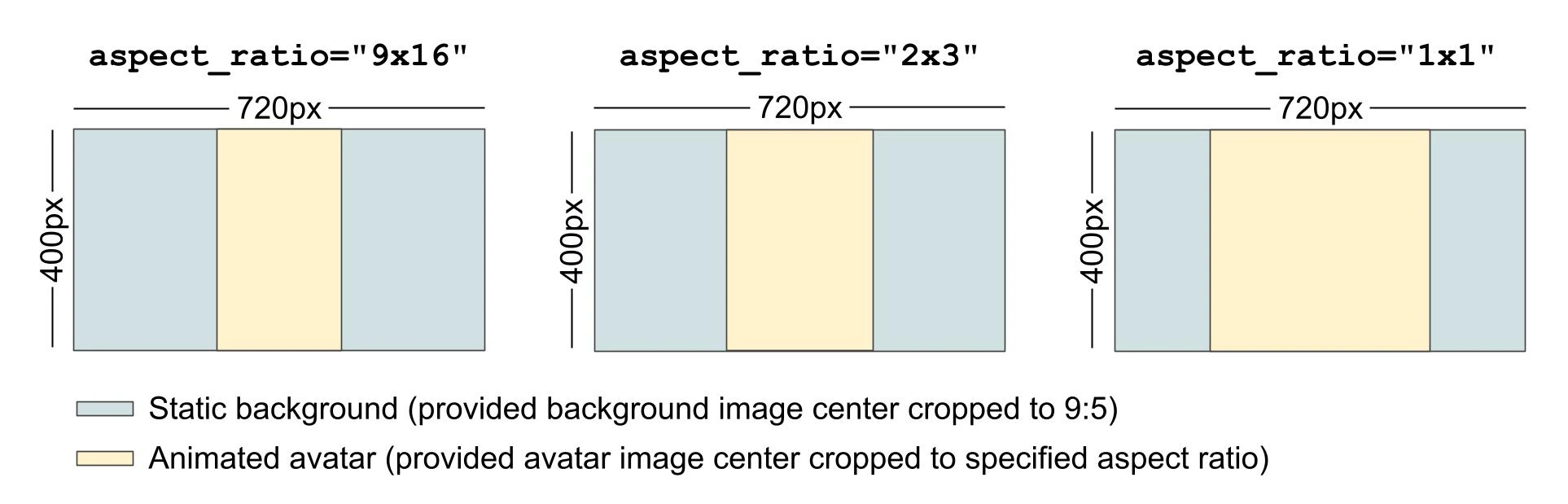
Illustration of final video layers based on chosen aspect ratio.
How to Use
Self-Managed Pipeline
To enable the green screen with an API request, pass inbackground_image_url and (optionally) aspect_ratio.
LemonSlice will composite your animated avatar over the background image.
PYTHON